
Availability is where a company records who is off, and it is what lets BuildersAI warn you when work has been given to somebody who will not be there. You record a holiday, a sickness absence or a training day once, and from then on every task that lands on it is marked: where you assign it, on the programme, and when you move dates. It is a browser job: the phone has no Availability screen yet.
It warns and never blocks. Nothing here stops you assigning anything, because sometimes the right answer is to move the time off, not the work.
How to get there (app.buildersai.co.uk):
- Click the BuildersAI logo in the top-left corner to reach All projects
- If you work for more than one company, check the organisation name beside the logo. Time off is recorded for that company
- Click Availability in the row of tabs
Reading the board:
- People are listed down the left and the days run across, six weeks at a time. The arrows at the top right move four weeks earlier or later, and Today brings this week back
- Each bar is time off. For an owner or admin of the company its colour and label say why: Holiday, Sickness, Training or Other. Hover over a bar for the dates and any note
- A hatched day in somebody’s row is a day they do not work, for a person with their own working days
- A column tinted amber is a company day off. Hover over the date at the top to see its name
- The board lists only people with something to show. Show everyone lists the whole company, including somebody who has been added but has not signed up yet
Assigned while off: The box above the board lists every task that is still to do and is assigned to somebody who is off for it, across all your sites at once. Each person is named with the dates they are off, and under them each task with its job, so one holiday that lands on two sites reads as one thing to sort out. Click a task to open it.
- Nothing is blocked. Move the work, give it to somebody else, or leave it if the time off is what will move
- Only days still ahead are counted. A long task that began before somebody’s holiday last month is not listed for it now
Recording time off (owners and admins of the company):
- Click Record time off, or click the … beside a person and choose Record time off, or click an empty day in their row
- Choose Who. Anybody the company works with can be chosen: owners, admins, staff, and anybody on one of its projects
- Set the First day off. The Last day off follows it until you change it, so a single day is one field. Time off is in whole days
- Choose the Reason: Holiday, Sickness, Training or Other
- Add a Note if it helps, then click Record time off
To change or remove it, click its bar. A record stays with the person it was made for: to move it to somebody else, remove it and record a new one.
Who can see the reason: only owners and admins of the company see the reason and the note, because a sickness absence is private. Everybody else who schedules work is told the dates and nothing more. A site administrator’s board shows the same bars in one plain colour, labelled Off.
Working days: Most people work whenever their site does, and that is what everybody starts as. For somebody whose week is their own, such as a part-timer who never works Fridays, click the … beside their name, choose Working days, pick Their own days and tick the days they work.
- A task given to them wholly on a day they do not work is marked
- A task that runs across several days is not marked just because one of them is their day off, or every week-long task would carry a mark
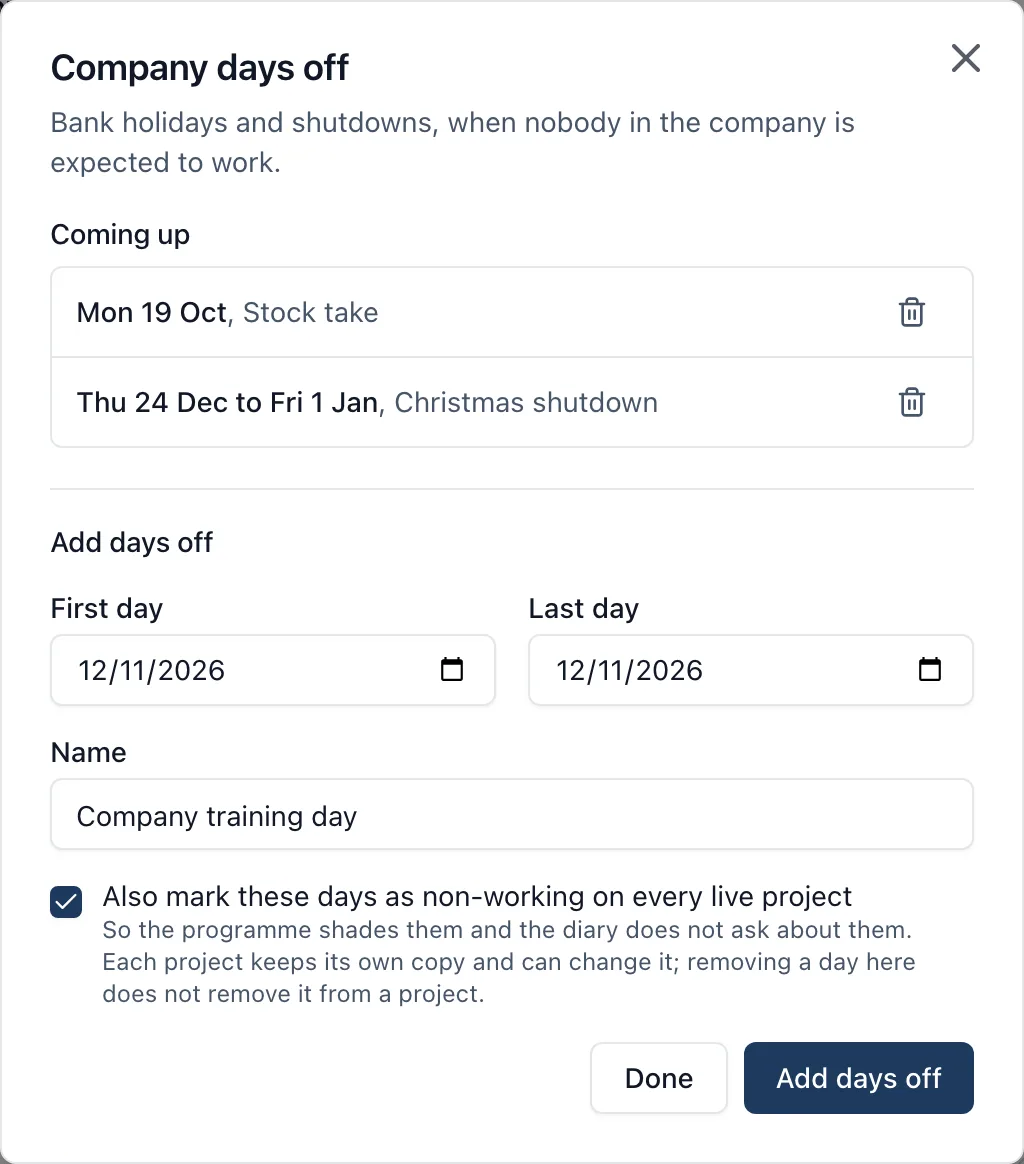
Company days off: Bank holidays and shutdowns are entered once for the whole company. Click Company days off, set the first and last day, give it a name such as “Christmas shutdown”, and click Add days off.
- Also mark these days as non-working on every live project is ticked to begin with. It adds the same days to each project’s own calendar, so the programme shades them and the diary does not ask whether the site was closed
- That is a copy. Each project keeps its own days afterwards and can remove them, for a site that works the bank holiday, and removing a company day does not remove it from a project
- A task that sits wholly inside the company’s days off is marked for everybody on it
The warning on a task: When you open a task, anybody assigned to it who is off for its dates has a mark beside their name, and a note under Assignees says who, when, and how much of the task it covers: “off Thu 8 to Fri 9 Oct, 2 of this task’s 4 working days”.
- The people picker says so before you choose: a person who is off for the task’s dates has “Off” and the dates under their name
- The same happens while you are creating a task, as soon as it has dates
The warning on the programme: On the Gantt, a task with somebody off for it has a small amber mark just past the end of its bar. Hover over the bar and the readout says who and when.
- While you drag a bar, the readout tells you if the days you are heading for land on somebody’s time off, before you let go
- If moving a task brings others with it, the confirmation lists them, and any that would land on somebody’s time off is marked there too
- The mark is not printed. A printed programme often goes outside the company, and when a colleague is off is not for a client’s copy
What counts as off for a task:
- Only days the site works are counted, so a holiday that covers a weekend is not counted against a Monday to Friday job
- A recorded absence on any counted day is a warning
- A person’s own working days, and the company’s days off, are a warning only when they leave no day of the task at all
SiteBot cannot read who is off yet, so the Availability tab is the place to look.
Who can do what:
- The Availability tab is offered to the company’s owners and admins, and to anybody who administers at least one of its projects. Members and followers do not get it
- Recording, changing and removing time off, setting working days and keeping the company’s days off is for the company’s owners and admins only
- A site administrator who does not run the company sees the people on the sites they administer and the dates they are off, without the reason
- The warning on a task and on the programme is shown to that project’s admins and members, who are the people that can assign and schedule. Followers are not shown it
- A project that is not in an organisation has no availability