
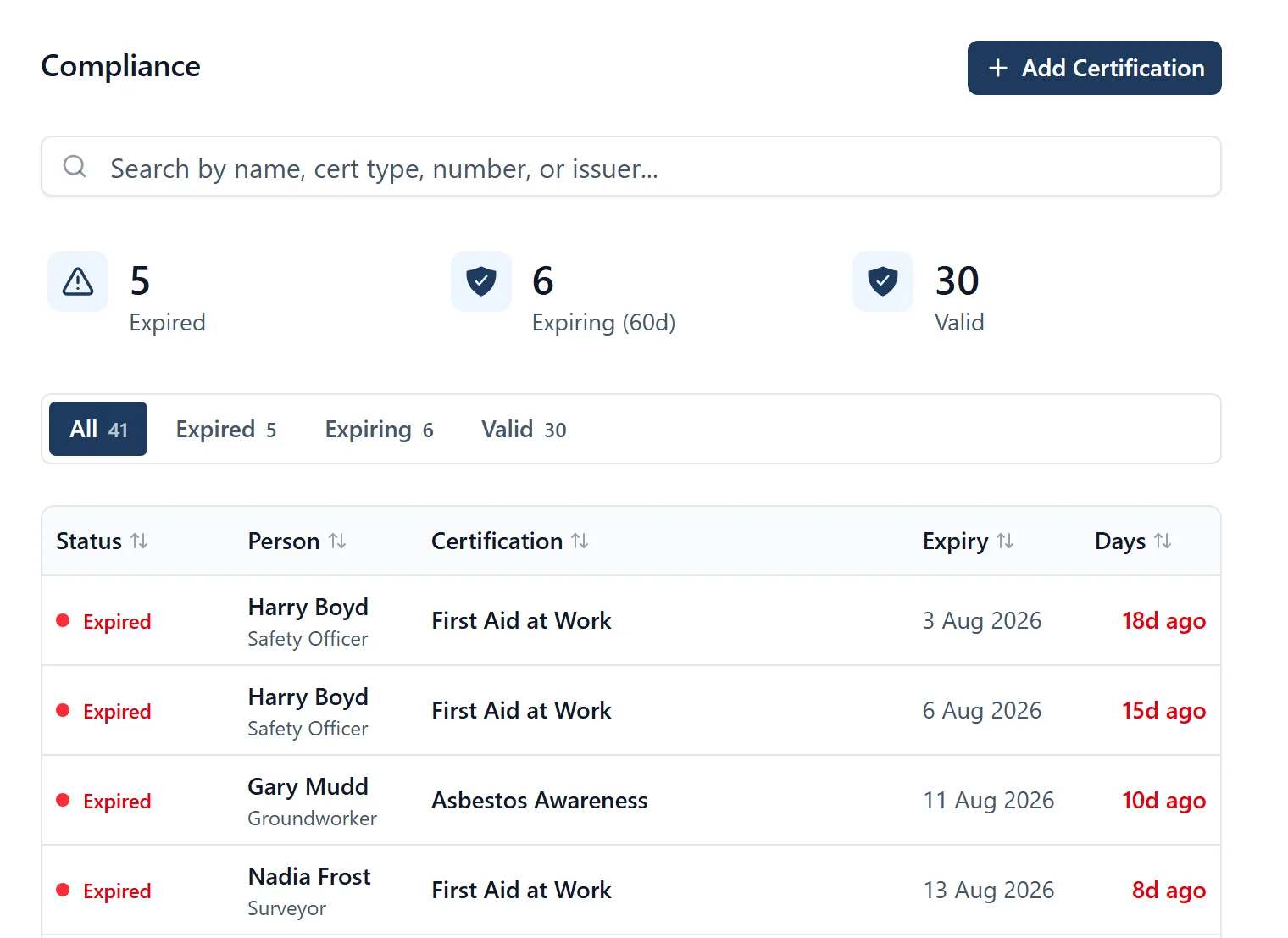
Track CSCS cards, qualifications, and training certificates for your team.
How to check someone’s certifications:
- Tap the People icon in the bottom bar (far right, person outline)
- Tap on the person’s name to open their profile
- Scroll down to the “Certifications & Licences” section
- You’ll see each certification with its status: Valid (green), Expiring Soon (amber), or Expired (red)
How to check the whole team’s compliance (admins only):
- Open the side menu: tap the three-line icon (☰) in the top-left corner
- Tap “Team Compliance”
- You’ll see an overview of all certifications across the team, highlighting any that are expired or expiring soon. “Expiring” here means within 60 days. The Compliance & Certification Risk card on the Project Dashboard uses 30 days instead, so the two screens can show different counts on purpose (see the “project_dashboard” topic)
Across every site you run (admins only): click the BuildersAI logo in the top-left corner to reach All projects, click People, then Certifications. On the phone: All projects, People, Certifications. It lists every card expired or expiring within 30 days across all the jobs you administer, one row per card, naming the projects that card stops work on. Click a row to open the person who holds it. Team Compliance is the same question for one site. Note what neither can see: only cards held by admins and members, so subcontractors who are on your jobs as followers do not appear at all, and an empty list is not proof that everybody on site is in date. See the “all_projects” topic.
Cards running out across all your projects (admins): Team Compliance answers that for one site. If you run several, one screen covers the lot.
- Click the BuildersAI logo at the top left, or click the project name in the same row and choose All projects at the foot of the list
- Click People in the row of buttons above the panel, then Certifications beside it
- You get every card that has already run out, or runs out in the next 30 days, for everyone on the projects you administer, the most overdue first
One line per card, not one per project. Each line names the jobs that card stops work on, so an expired ticket held by somebody working on three of your sites is one line rather than three separate problems. Above the list it counts how many have expired and how many are expiring.
What this list cannot see, and it matters. It only reaches cards held by admins and members. Followers do not appear at all, and plenty of subcontractors are set up as followers. So an empty list means nothing is outstanding among your admins and members. It is not proof that everybody on site is in date, and the screen says so with the list (under it in the browser, above it on the phone), including when the list is empty. Cards with no expiry date are not on it either, because they cannot run out.
Or just ask me. In the browser, outside a project, open “SiteBot, all projects” and ask “whose tickets are running out?” and I’ll read you the same list, with the same blind spot.
Certifications are entered by an admin, not by the person who holds the card:
- Your own list, under Profile in the side menu, is there to read. There is no add button on it
- If a card of yours is missing or out of date, ask a project admin (usually your site manager) to put it on. That way the record says who checked it
- If you are a project admin yourself, you add a card from a person’s profile, your own included. The next section is how
Adding a certification for someone (admins only):
- Tap People in the bottom bar
- Tap on the person’s name
- In their Certifications section, tap the + icon
- Tap Scan the card and take a photo of it, or pick one you already have. The type, level, number, issuer, name and expiry date are filled in from the photo in a few seconds, and the photo is attached as the card’s picture. Check each field against the card before you save: anything that was hard to read is marked “Hard to read: check this one”, and you can change any field. Or skip the scan and fill it in by hand
- Fill in, or check:
- Certification Type. The only one you have to pick, from the list of recognised cards: CSCS, SMSTS, First Aid and the rest. Cards that come in levels, like CSCS, then offer a Subtype for the level. Pick “Other” and you type the name in yourself
- Certification number, and the organisation that issued it
- The name as it appears on the card
- Expiry date. Leave it blank if the card never expires
- A photo or PDF of the card itself. This is the thing a principal contractor asks to see, so add it while you have the card in your hand
- Tap “Save Certification”
Scanning a card, what to know:
- It needs a signal, because the photo is read by an AI model on our servers. With no signal the button says so, and you fill the card in by hand as before
- The photo is read and not kept unless you save the card, and then only as the card’s picture, like any card photo
- It says when something needs a second look: the name on the card is not the person you are adding it for, the card has already expired (you can still save it, and it shows as Expired), or the card gives only a month, in which case the last day of that month is used
- For the best result, hold the card flat so it fills most of the picture, out of glare. A card small in the picture is where it is most likely to misread a digit, and it marks those fields for you to check
- Each person can scan up to 40 cards in any 24 hours. Scanning is on the phone only for now
- Every card type in the list can be saved. Until September 2026 some of them (Gas Safe, NICEIC, NAPIT, ELECSA, OFTEC, HETAS, WIAPS, MCS, F-Gas, CISRS and TWC) failed to save, and adding a card with its photo for somebody else failed too. Both are fixed
You can do the same from Team Compliance in the side menu. The browser has a shorter version of the same form, on the Compliance page or on a person’s profile: it adds an Issue Date, and it has no Subtype and no name-on-the-card field.
Checking expiry dates:
- Valid: in date, with more than 60 days left to run (a card with no expiry date counts as Valid too, see below)
- Expiring Soon: the card runs out within the next 60 days. That is your window to get the renewal booked. The screen says the number itself: the Expiring tile reads “within 60 days” on the phone and “Expiring (60d)” in the browser
- Expired: the date on the card has gone by
- Superseded (on the phone only): a newer card of the same type has taken over from this one. It happens on its own, so when you add somebody’s renewed CSCS, last year’s is marked Superseded for you and you do not have to go and delete it. The browser has no Superseded status, so a replaced card is still read there by its own expiry date and can show as Expired even though the person is holding the current one
- The all-projects certifications list uses a tighter window, 30 days, because it lists what is about to stop work rather than what to plan for. The same card can be Expiring Soon here and absent from there without either being wrong
- Ask me: “Who has expiring certifications?” or “Who has an expired CSCS card?” for a quick check
Certifications without an expiry date:
- Some qualifications never expire (e.g., a one-off training certificate)
- Leave the expiry date blank when you add it. The cert appears as “Valid, no expiry” and sorts to the bottom of the valid list, so it doesn’t clutter the “expiring soon” view
Editing or deleting a certification:
- Tap a certification to open the detail view
- Tap Edit to change any field (name, type, number, issuing organisation, expiry date)
- Or tap Delete and confirm to remove it
- Only the admin who entered a card can change or delete it, and only while they still administer a project the holder is on. Being an admin is enough to see a card, not to change one
- There is one copy of each card, shared by every project its holder works on, so this stops an admin on one site rewriting or deleting what another site is relying on
- Older cards can be the exception. Where nothing on the record says who entered one, any admin who shares a project with the holder can still change it
Asking me who is qualified for a job (admins): If you are an admin on the project, I can put a shortlist together rather than you reading down the list yourself.
- “Who can operate the telehandler on Thursday?”
- “Who is qualified to work at height and free tomorrow?”
- “Who could take task 42?” For each person I say which of the cards they hold, whether each is valid, expiring within 30 days, or expired, what they already have on that day, and whether they were on site.
Two things to know before you act on it:
- The app does not record which card a job needs. Either you name it, or I work it out from the work and tell you I have done so, in words like “assuming this needs an IPAF card”. Correct me if I have the wrong one. Nothing has been checked against a requirement, because there is no requirement on record to check against
- “Free” means what the app can see: assigned work and check-ins. It does not know about holiday, another site, or a job somebody took over the phone. Treat it as a starting point for the conversation
Members and followers do not get a shortlist: the team’s cards are admin-only, so the answer would cover them alone. Their own cards I can always check.
Ask me anything about certifications:
- “What certifications does Sarah have?”
- “Who needs to renew their first aid?”
- “Has Dave got a valid first aid certificate?”