
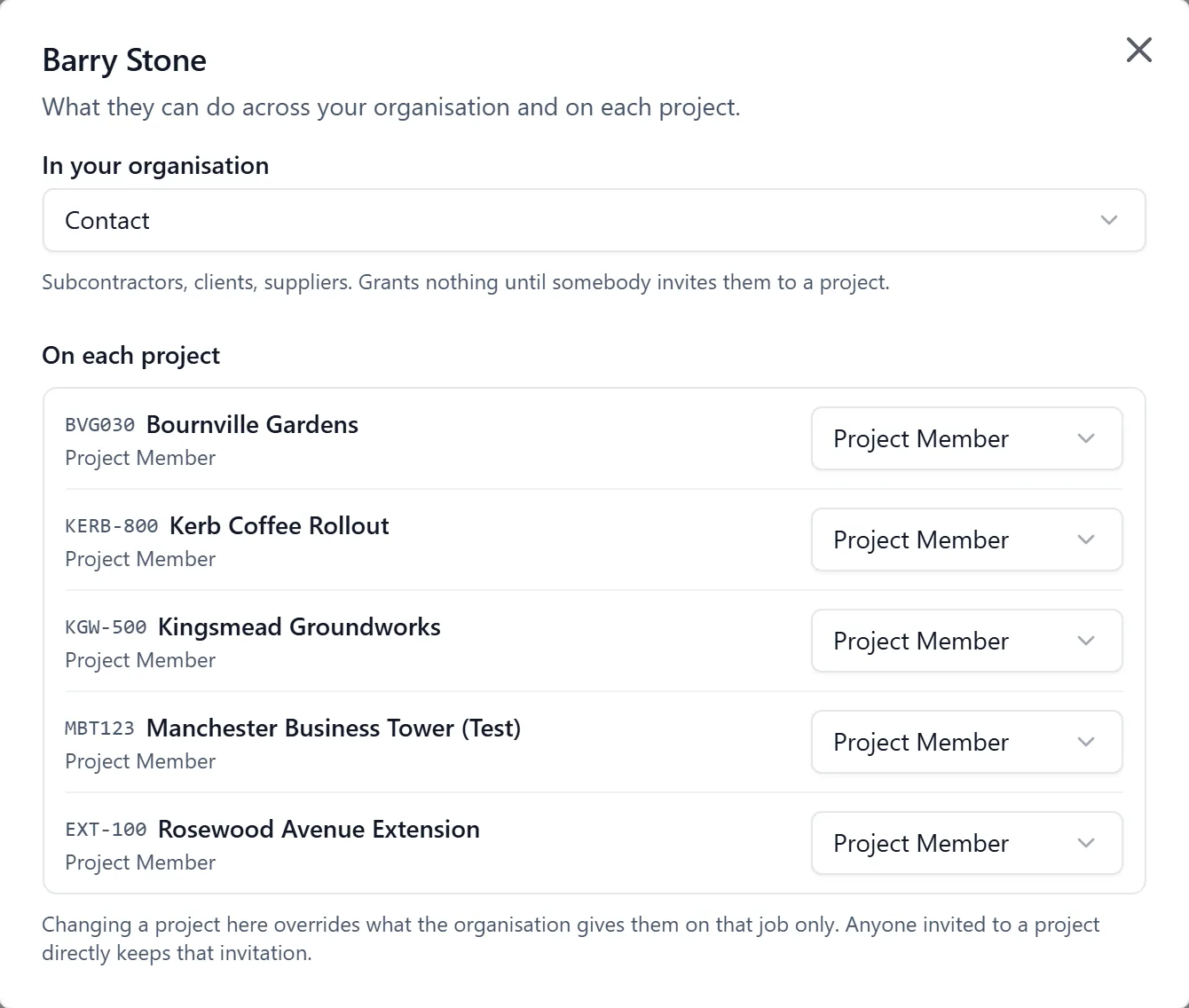
Every person on a project is an Admin, a Member, or a Follower. The role decides both what they can do and what they can see.
That role can come from two places. It is either set on the project itself, or it comes from your standing in the company account (your organisation). There are four standings:
- Organisation Owner: runs the company account (billing, the plan, seats and two-factor) and is an admin of every project the organisation owns
- Organisation Admin: the same. Billing, seats and two-factor, and admin of every project
- Organisation Member: your own staff. Joins every project as a member, and uses a seat once any are live
- Contact: subcontractors, clients, suppliers. Grants nothing on its own: give them the projects they need
So an Organisation Admin is an admin of your job without ever having been added to it, and an Organisation Member is a member of it the same way. A Contact holds nothing until somebody gives them a project. Three of those four are set on the company’s own People list (the owner is handed over in organisation settings instead), which is also where seats are spent and where somebody can be taken off the company altogether. See the “organisation_people” topic.
Staff are on every project the organisation owns, and a new job puts them on it the day it is created. One person can hold a role both ways at once: your own foreman is staff, so he is on every job, and he may also have been added to this one by name.
Telling the two apart, in the browser. Every role badge on the People page says where the role came from. A plain badge is a role this job set. A badge with a dashed edge and · org after it is one that comes from your organisation. Their Permissions says the same in words, a line per project: “Project Member, from the organisation”, or “Project Admin” on its own when this job decided it, or “Project Member, from the organisation · also added to this job directly” when both are true. Inside a project the phone shows the role but not where it came from. An administrator can read it on the phone under All projects, People, the person’s Permissions. For where those buttons are, ask about team and people (the “team_management” topic).
Why it matters when somebody can see a job you did not expect:
- A plain badge is this project’s own decision. Change their role here, or take them off the job, and it is done
- A · org badge comes from the company account. You can still change what they are on this job, and that change sticks, but they are on every other project too, and only an owner or admin of the organisation can change that
Shutting one person out of one project (browser).
Sometimes there is one job somebody should not see: a client’s private site, a dispute, work being priced. You can shut one person out of one project without touching anything else they have.
- Open the project’s People page in the browser
- Click the person to open their profile
- Scroll to Danger Zone at the bottom and click Remove from Project
- Read the box, then click Remove. For somebody who is on this job through your organisation it says so: they keep their place on your people list and all their other projects, and any tasks they are assigned to here are kept, so nothing is lost if you let them back in
What it does. They come off this project’s People list and this job stops existing for them. They keep their standing in your company and every other project. If they were only ever added to this one job, there is nothing above them to shut out, so it is an ordinary removal: they come off the job and their assignments here go with them.
Where they go, and how to undo it. Below the role groups on that same People page is a section headed Excluded from this project, with an eye-with-a-line-through-it icon and a count beside it. It appears only once somebody has actually been shut out, and only project admins see it. Each row says what the button will do:
- “returns as Project Member”, or whichever role this project had set for them. That is what they come back at, not their company-wide one. So if the job had already demoted a company admin to Follower, Follower is what they get back
- “has no access here to return to” means they have since come off your company’s people list, so there is nothing to restore. The button only clears the record. To put them on the job, add them to it
Click Let back in to lift it. Adding them to the project again works too, and gives them whichever role you pick as you add them.
Worth knowing:
- Letting somebody back in puts a person on a project, so it is checked against your plan like any other addition. On a full plan you are told it would go past the number of people the plan covers, and if the account is behind on payment you are told that instead
- The decision sticks. It is a fact about that person and that job, so it holds however else they would reach the project, and it outlives their coming off your company’s people list
- Not on this project in somebody’s Permissions is a different thing. It takes back what this project gave them, and it is how you withdraw access from an address that has not signed up yet. To shut out somebody who is on the job through your organisation, use Remove from Project on the People page
- The phone can remove somebody from a project, and for your own staff that shuts them out the same way. But there is no Excluded list on the phone, so letting them back in is a browser job
Admin: runs the project. Manages the team, uploads drawings, changes settings, writes announcements, handles billing. Sees everything.
Member: does the work. Creates and updates tasks, uploads photos and files, comments, checks in and out, writes the site diary, manages their own certifications. Sees the whole project’s tasks.
Follower: reads, and only their own corner of the project. Typically the client, their representative, or a subcontractor pulled in for specific work. A follower can comment and add photos on a task they are assigned to or created, and nothing else: no tasks, no labels, no changes to a task, and no comments or photos anywhere else.
What a follower can add to their own task:
- A comment, and photos or videos with it, on a task they are assigned to or created. A task they were only @mentioned on does not count
- On the web, photos on the task itself too, under Images
- Everybody who can see that task sees what they add: the admins and members, and anybody else on the task. Admins and members also find the photos in the Gallery
- The people on the task are told about a follower’s comment the same way as anybody’s
- A follower cannot @mention anybody, because a mention would let them open the task to somebody else
- A follower cannot edit or delete a comment once it is posted, or take a photo back off. An admin can remove it
- Photos and videos only: no documents, and nothing from Files or the Gallery
The important part: a follower does NOT see the whole project.
A follower sees a task only if they are involved in it. That means one of three things:
- They are assigned to it
- They were @mentioned in a comment on it, unless the task is private
- They created it themselves (relevant if they used to be a member and were changed to a follower)
Any other task in the project is invisible to them, along with its comments, its labels, its attachments and who is assigned to it. Their task list is genuinely their own list, not a filtered view of the project’s.
A follower also cannot see:
- The site diary at all (it carries labour hours, delay causes and what was blocked)
- Who is on site: the roll call, the visitor register, and anybody’s check-ins but their own
- Files, folders and photos above the “everyone” access level (see below)
- Links between tasks, unless they are involved in both tasks
Adding a follower to a task: assign it to them, or @mention them in a comment on it. A mention is a real grant, not just a notification: the moment you mention someone in a comment, that task and its whole thread become visible to them. Worth remembering before mentioning a client on a task that discusses cost or a dispute.
Taking the mention back out of the comment, or deleting the comment, removes that access again (unless they are also assigned).
A private task is the one exception. Mentioning somebody in a private task tells them about it, but it does not let them open it. Only the person who created it, the people assigned to it and the project’s admins can see a private task. To let somebody else in, assign them to it or switch Private off on the task.
Access levels on files and photos are separate from roles. Each file, folder, album and photo is set to one of:
- Everyone: any project member, including followers
- Members: members and admins only
- Admins: admins only
So a follower sees only “everyone” content, whatever their task access.
Changing someone’s role:
- Making someone a follower immediately narrows them to the rules above. They keep the tasks they are assigned to and the ones they created, so their own work does not vanish, but the rest of the project disappears from their view.
- Making a follower a member opens the whole project to them again.
Removing someone from a project is different and stronger: they lose access immediately, and their task assignments are deleted. If you invite them back later they regain the tasks they created and the ones they were mentioned in, because those are still on the record, but their old assignments do not come back and have to be set again. The app tells you how many tasks they are assigned to before you confirm.
“Why can’t I see this task?” If someone is a follower, the answer is almost always that they are not assigned to it and have not been mentioned in it. An admin or member can fix that by assigning them or mentioning them in a comment.
Who can do what:
- Project admins decide access on their own project: somebody’s role, whether they are on the job at all, and letting an excluded person back in
- Nobody changes their own access. The Permissions button never appears on your own profile, and you cannot take yourself off a job. Somebody else has to do it
- Only an owner or admin of the organisation changes what somebody is to the company as a whole. Everybody else sees that half read-only, with a line saying who to ask
- An owner or admin of your organisation administers every project the organisation owns, so they can sort out access on any of its jobs
- Members and followers change nobody’s access, their own included