
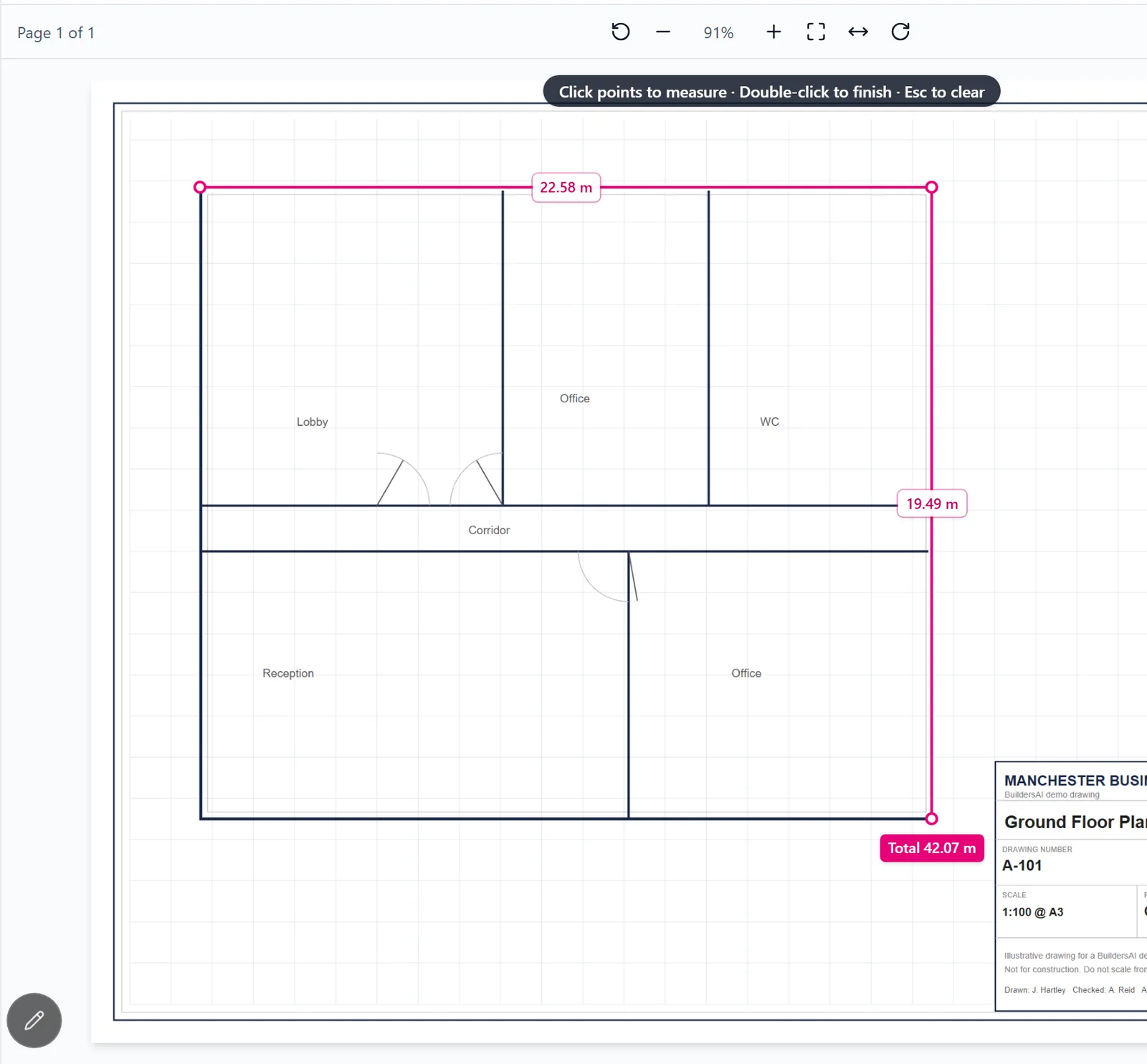
On a computer, a drawing opens in the browser at app.buildersai.co.uk, under Drawings. You can move around it as you would in a PDF reader, and once it has a scale you can measure it, so there is no need to download it into another program.
Moving around a drawing:
- A drawing opens showing the whole sheet
- Hold Ctrl (Cmd on a Mac) and scroll to zoom in and out. The zoom follows the mouse, so point at the detail you want and scroll. On a laptop trackpad, pinch with two fingers
- Drag the sheet with the mouse to move it around. The plain scroll wheel and a two-finger swipe on a trackpad also move it
- The plus and minus buttons in the toolbar, or the + and - keys, step the zoom in and out
- Fit page (or the 0 key) shows the whole sheet again, and Fit width fits the sheet to the width of the window. The percentage between them is the zoom as a share of the width
- Zoomed in, the sheet is redrawn sharp a moment after you stop, so even small text on a large A1 or A0 sheet can be read
- With a markup pen in your hand, a drag draws rather than moves the sheet. Hold the Space bar and drag to move it without putting the pen down. Pressing the mouse wheel down and dragging also moves it
The scale:
- The box in the top right corner of the drawing shows its scale, such as Scale 1:100, with a scale bar drawn at the zoom you are looking at, and says who set the scale and when
- A drawing has no scale until somebody sets one. Admins and members can set it; followers see it and can measure, but cannot change it
- A scale belongs to the revision it was set on. When a drawing is revised, the new revision starts with no scale, because the scale may have changed with it
- The scale is shown in the browser only. The phone app does not show it yet
Setting the scale from two points (the most reliable way):
- Open the drawing and click Set scale in the box at the top right (Change scale if it has one)
- Choose Two points, then Pick two points on the sheet
- Click both ends of a length you know, such as a dimensioned wall or the distance between two grid lines. Pick a long one: the longer it is, the more accurate the scale
- Type how long it is, and choose metres or millimetres. The box shows the scale that makes, and if it is very close to a usual drawing scale such as 1:50 or 1:100, it offers to use that
- Click Set
Setting the scale by typing it:
- Click Set scale, then Type a ratio
- Type the scale written on the drawing, such as 1:50, and choose metres or millimetres
- The box shows the paper size the PDF says it is, such as A1, 594 x 841 mm. A typed scale is only right if the drawing was saved at the paper size it was drawn for. A drawing drawn for A1 and saved as an A3 PDF will measure at half size, so if in doubt, use two points instead
- To remove a scale, open Change scale and click Clear the scale
Measuring:
- Click Measure in the box at the top right. It is only available once the drawing has a scale
- Click on the sheet where the measurement starts, then click at each point along the way. Every leg shows its length, and once there are two or more legs the total is shown at the last point and in the box
- Double-click, or press Enter, to finish a line. The next click starts a new one
- Press Backspace to take back the last point, and Escape to clear the line. Click Stop measuring when you are done
- You can still drag to move the sheet and zoom while measuring
Measurements are not saved: they are for looking at, and they disappear when you clear them or leave the drawing. Lengths are measured on the drawing, so they are only as accurate as the drawing and its scale. Always check a critical dimension against the figures written on the drawing.